How to connect ChatGPT to your notes

I wanted to ask ChatGPT to add to a list, plan a trip or tidy a note, and have the change land in my notes instead of in a chat I'd have to copy from. That's what Amber Notes does. Here's how to set it up in a few minutes, and how you stay in control.
How it works
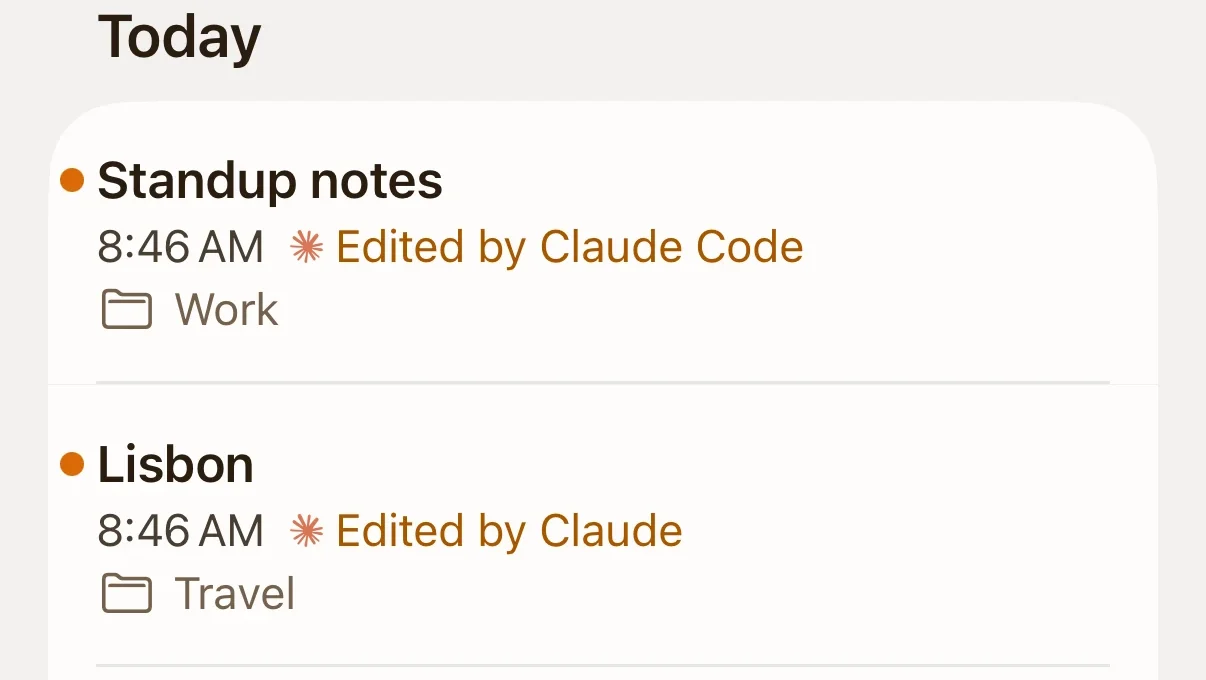
ChatGPT and Claude can use apps that offer an MCP server. MCP (Model Context Protocol) is an open standard that lets an assistant find, read and change things in another app. Amber Notes, the notes app for iPhone and Mac, has one built in. Once you connect it, ChatGPT can search your notes, read them, write new ones and edit the ones you have.
Apple Notes doesn't have one. On a Mac, ChatGPT can look at a note you have open, but it can't search your notes or save changes to them. If you're wondering why, why AI apps can't reach Apple Notes explains it, and notes apps that work with ChatGPT compares the alternatives.
What you need
- Amber Notes on your Mac, signed in. It's free. Download it here.
- ChatGPT Plus, Pro, Business, Enterprise or Edu. Adding your own app needs Developer mode, which the free plan doesn't have.
- ChatGPT on the web, at chatgpt.com. That's where OpenAI documents custom apps; I haven't confirmed them in the phone apps.
Connect ChatGPT
- In Amber Notes, open Settings (Amber Notes, then Settings, or ⌘,). If your notes are in Apple Notes, import them first.
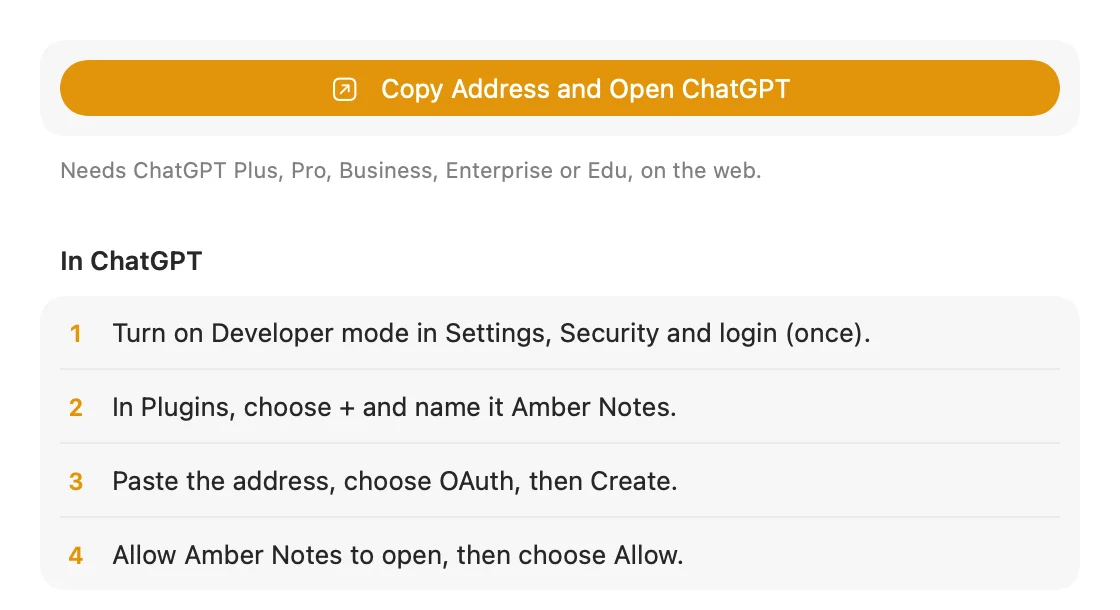
- Under Connect an AI, choose ChatGPT, then Copy Address and Open ChatGPT. Amber Notes copies its address and opens ChatGPT's Plugins page. The steps stay on screen while you work.
- In ChatGPT, turn on Developer mode in Settings, Security and login. You only do this once.
- In Plugins, choose +. On accounts that show a menu, choose Create MCP App. Name it Amber Notes.
- Paste the address as the connection, choose OAuth, then Create.
- ChatGPT asks Amber Notes for permission, and a page on ambernotes.app opens. Sign in there (or choose Open Amber Notes if it's on this computer). The page then tells you to open Amber Notes on your iPhone or Mac, and shows a two-digit number once you have.
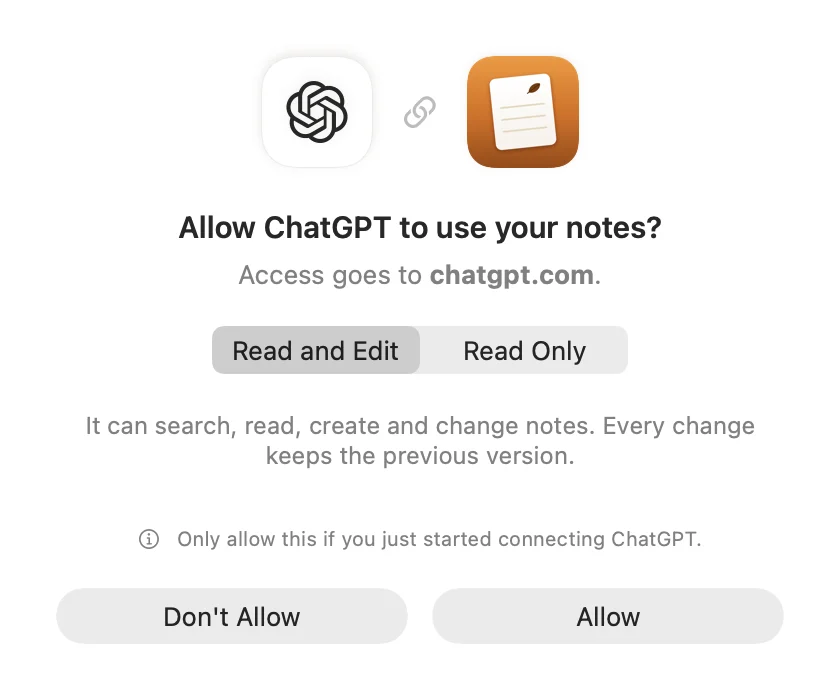
- Amber Notes on your iPhone or Mac asks “Allow ChatGPT to use your notes?” Type the number from the page, pick Read and Edit or Read Only, and choose Allow. The page takes you back to ChatGPT to finish. If the app asks without a number showing in your browser, or you didn't start this, choose Don't Allow.
- Start a new chat, add Amber Notes from the tools menu, and try it: “Search my Amber Notes and tell me what I wrote most recently.”
No iPhone or Mac nearby? On the page, choose Use your recovery key. Enter your recovery key (Amber Notes shows it in Settings, Privacy & Security), pick Read and edit or Read only, and choose Allow. The key is used on that page only and never sent to us, but approving on your device is safer, so use it when you can.
OpenAI renamed some of these pages in 2026. If you see Connectors or Apps instead of Plugins, it's the same place.
If Create MCP App isn't there
If choosing + in Plugins only offers Create plugin and Upload plugin, Developer mode is off. Open chatgpt.com/settings/security, turn on Developer mode, go back to Plugins and choose + again. Create MCP App should then be in the menu. This comes from a thread on OpenAI's community forum on 28 September 2026, where a Pro user confirmed it for a teammate's account; OpenAI's docs only say to choose the plus button. In a Business or Enterprise workspace, Developer mode can also be switched off by the workspace's policy, so ask your admin if the toggle isn't there.
Menu labels differ between accounts while OpenAI rolls changes out. I couldn't check these steps in a Plus account after the September changes; they follow OpenAI's Developer mode guide and Connect and test your plugin. If yours look different, the help page below is the quickest way to tell me.
What changed at DevDay 2026
At DevDay on 29 September, OpenAI announced bigger plugins: a home in the sidebar, panels next to the chat, file viewers, a Plugin Creator tool, a new way to submit to the plugin directory, per-plugin permission approval, and support for MCP Events, a proposed addition to MCP that lets a plugin start an automation when something happens in the connected app. OpenAI gave no dates for when these reach each plan.
None of this changes the steps above. Amber Notes connects as an MCP app you add yourself, and it doesn't use the new panels or MCP Events yet. OpenAI's developer docs call Developer mode elevated risk: the model can make mistakes on write actions, and a malicious server could try to take your data. That's why Amber Notes asks you to allow each app, lets you pick Read Only, and keeps every earlier version.
Claude
Amber Notes is in Claude's connector directory. Open its listing on claude.ai or in the Claude desktop app, choose Connect to Claude, sign in, then Allow in Amber Notes. Under Connect an AI, choose Claude for the same link. Once it's added, Claude's iPhone and Android apps can use it too. On Team and Enterprise an Owner may need to allow it for the organization first.
Using an older Claude app, or one that doesn't show the listing? Add https://mcp.ambernotes.app as a custom connector instead, under Customize, Connectors. That works on every Claude plan, and the free plan includes one custom connector.
Claude Code and Codex
These use an access token instead of a sign-in. On a Mac, choose Claude Code under Connect an AI and then Add to Claude Code, or copy the command it shows. For Codex, Amber Notes gives you a few lines to paste into ~/.codex/config.toml.Using your notes from Claude Code and Codex has the details.
Incredible
Incredible, the AI assistant my company makes, is a desktop app for Mac and Windows, and Amber Notes is one of its apps. In Incredible:
- Open Apps and search for Amber Notes.
- Choose Connect. Your browser opens Amber Notes.
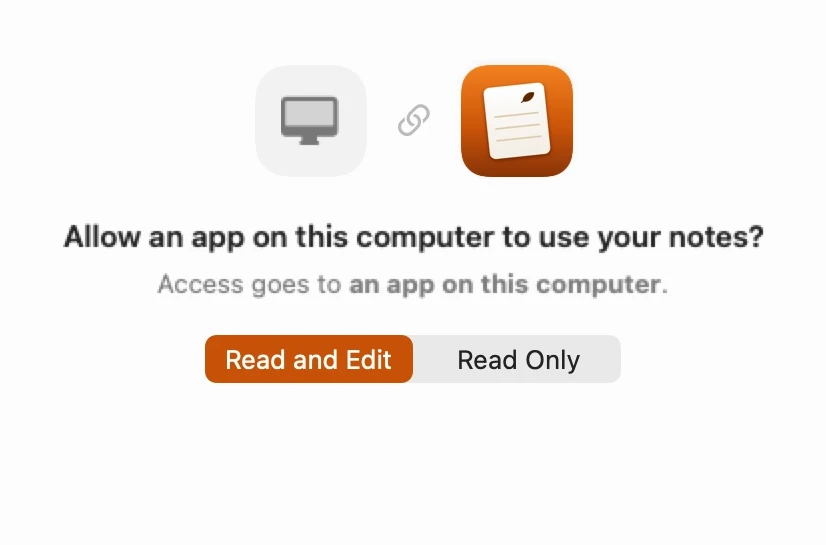
- Amber Notes asks to allow an app on this computer that calls itself “incredible”. A sign-in that returns to your own computer can't prove which app is asking, so only allow it if you just chose Connect. Pick Read only if Incredible should only look things up, then choose Allow. On a Windows PC, you sign in on the page that opens and approve on your iPhone or Mac, or use your recovery key.
- Back in Incredible, choose Let's go.
On an older version of Incredible, where Amber Notes isn't in Apps, add it as your own MCP server: choose Add it here at the bottom of Apps (or Add another MCP server), paste https://mcp.ambernotes.app, choose Continue, then Sign in. After you choose Allow, choose Add server. In Amber Notes, Settings, Connect an AI, Incredible has the same steps.
Other MCP apps
Any other app that supports MCP connects the same way: add the Amber Notes server address, https://mcp.ambernotes.app, and sign in when it asks, then choose Allow. The Amber Notes MCP server page has the address, the sign-in and every tool.
You stay in control
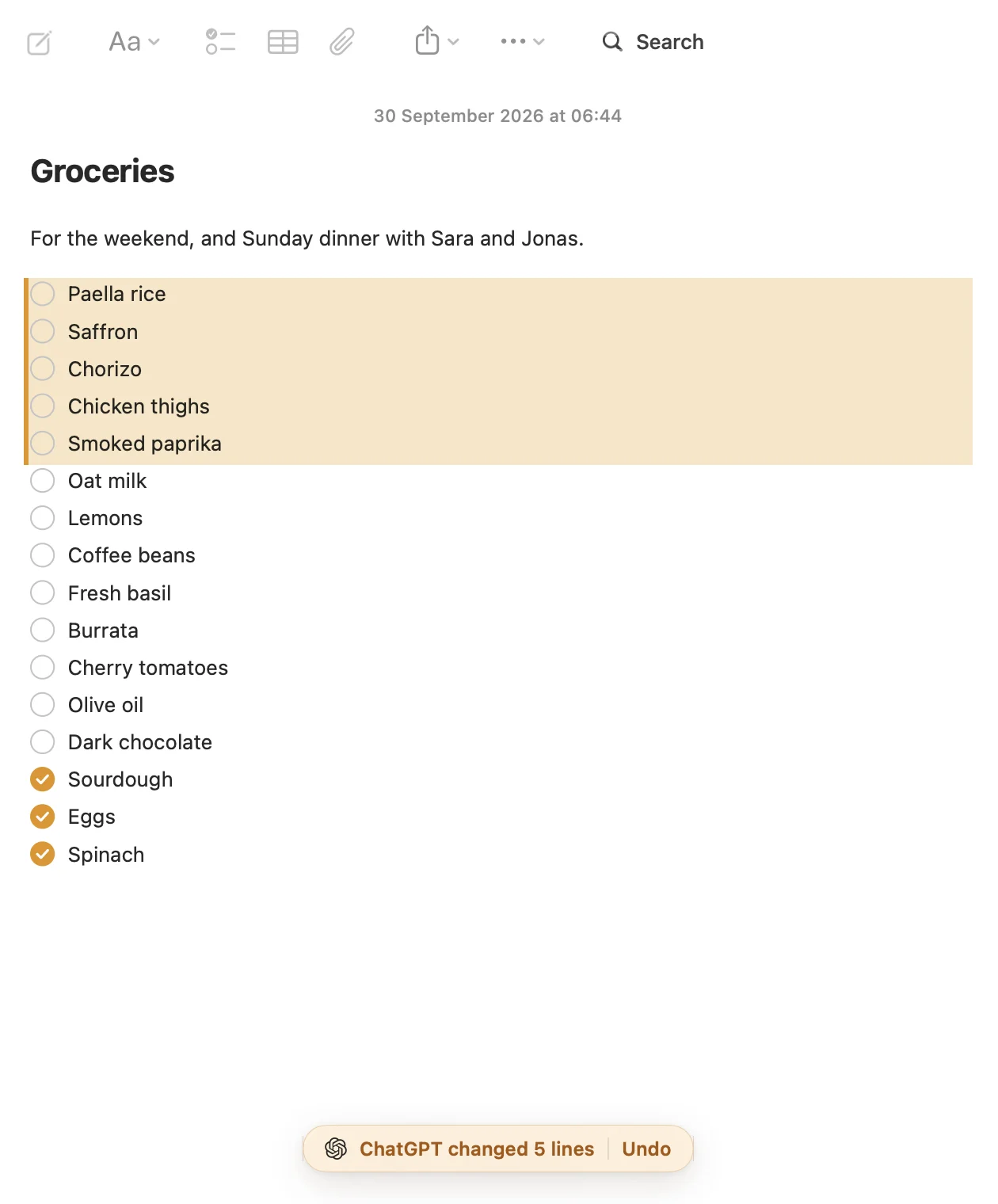
- Nothing is shared until you choose Allow: in Amber Notes on your iPhone or Mac, after typing the number your browser shows, or on ambernotes.app with your recovery key.
- You choose Read Only, or Read and Edit, for each assistant.
- When an assistant changes a note, Amber Notes shows what changed, with Undo. The previous version is kept in the note's version history (File, then Show Version History).
- Settings lists everything that's connected. Choose Disconnect, and it loses access right away.
Things to ask
For a to-do list you tick on your phone, see how to use ChatGPT as a to-do list. A few more:
- “Plan 4 days in Lisbon for us and save it to my notes.”
- “What did I write about the kitchen measurements?”
- “Turn my meeting notes into a checklist of next steps.”
- “Add today's standup to my work notes.”
Or start from a template: a note with the prompt that tells ChatGPT or Claude how to fill it in, like the habit tracker or meeting notes.
Stuck? The help page has the short version, and you can message me on X.
Questions
Which ChatGPT plans can add Amber Notes?
Adding your own app in ChatGPT needs Developer mode, which OpenAI's developer docs list for Plus, Pro, Business, Enterprise and Edu, on the web. The free plan can't add one. Check what your plan allows before you rely on edits: OpenAI's pages differ on whether such apps can write on every plan. OpenAI also says Developer mode can depend on account and workspace policy, so in a Business or Enterprise workspace an admin may have to allow it.
Does it work in the ChatGPT app on my phone?
You add Amber Notes once, in ChatGPT on the web. OpenAI's developer docs only describe the web, and I haven't been able to recheck the phone apps in a Plus account since the September changes, so treat phone access as unverified for now.
Why don't I see Create MCP App in ChatGPT?
Developer mode is probably off. Turn it on in Settings, Security and login (chatgpt.com/settings/security), then go back to Plugins and choose + again. Without it, the menu only offers Create plugin and Upload plugin. That fix comes from a ChatGPT Pro user on OpenAI's community forum on 28 September 2026, not from OpenAI's docs.
Can ChatGPT delete my notes?
Only if you chose read and edit. A deleted note goes to Recently Deleted for 30 days, and every change keeps the previous version in the note's history, so you can undo it.
Checked against the app on .